Owari Setup Guide
This guide will walk you through setting up the Owari theme.
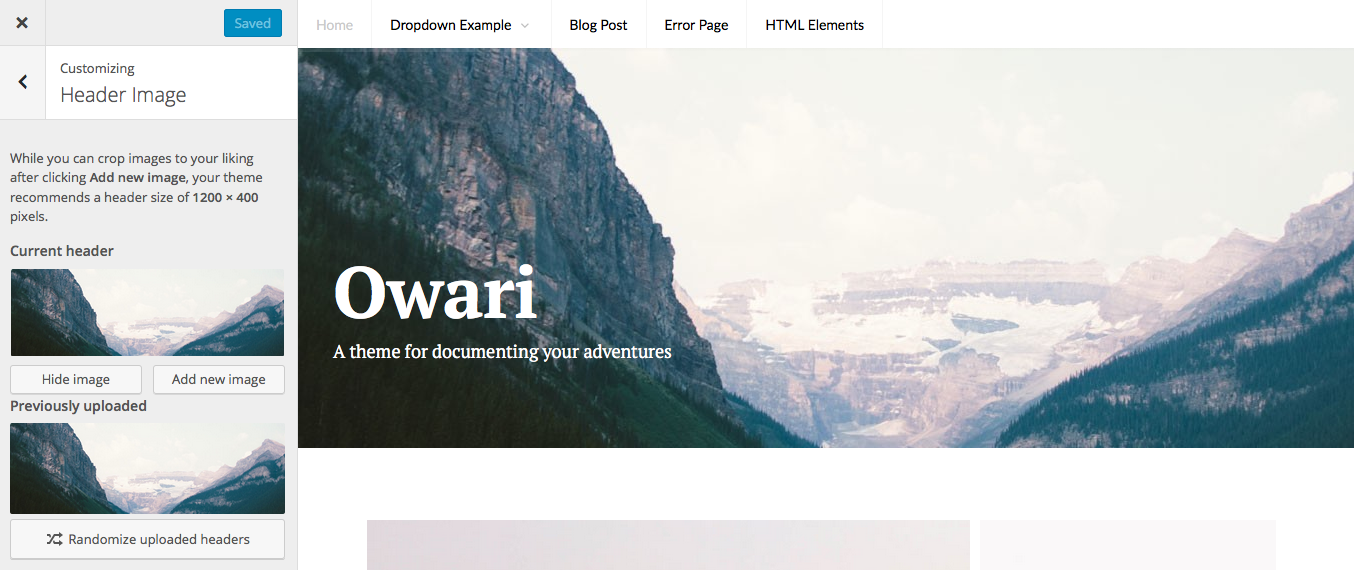 If you upload a larger image, you will have the opportunity to crop it. You will also have the opportunity to accessibly hide the header text on this screen as well.
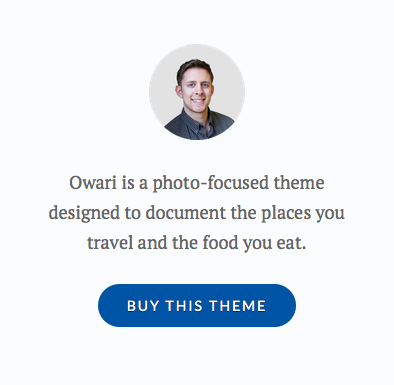 Here is sample code you can use to set up a similar widget on your own Owari themed website.
Custom Header
Owari takes advantage of the Custom Header feature. The recommended size is 1200 pixels wide, and 400 pixels high.
If you upload a larger image, you will have the opportunity to crop it. You will also have the opportunity to accessibly hide the header text on this screen as well.
Masonry
Owari features a Masonry layout on the your blog index page, archive index pages (category, tag, monthly), and search results pages. On the blog index page, you can make posts stand out more by setting them as Sticky. Setting posts as Sticky will differentiate from non-sticky posts in the following ways:- A "double wide" post width.
- A larger heading font
- An excerpt display
- Post meta information (date, author) preceded by icons
Featured Images
Featured Images can be displayed wherever the Masonry layout appears (again, blog/archive/search pages). For Sticky posts, images will be cropped to a maximum width of 684 pixels. For the rest of posts, images will be cropped to a maximum width of 336 pixels. Owari will not crop the height of any Featured Images, Sticky or not.Jetpack Infinite Scroll
Owari supports a single Jetpack feature: Infinite Scroll. Simply install Jetpack, activate the Infinite Scroll module, and that's it. If you would like your users to click an "Older Posts" button to trigger the loading of new posts, go to Settings → Reading and uncheck the "Scroll Infinitely" box. For more information on configuring this, see our documentation article on setting up Infinite Scroll.Widgets
Owari features one widgetized area in the sidebar, with styles for all the default WordPress widgets. If the sidebar widget area is not active, Owari will automatically adjust to a one-column layout.Text Widget Bonuses
Owari features a few styles that you can use to set up a "Call to Action" widget, as seen in the top widget on our demo site.
Here is sample code you can use to set up a similar widget on your own Owari themed website.
<p><img src="http://example.com/path-to-image.jpg" alt="Profile Picture" class="aligncenter profile-picture"></p>
<p style="text-align: center">Owari is a photo-focused theme designed to document the places you travel and the food you eat.</p>
<p style="text-align: center"><a href="#" class="button">Buy This Theme</a></p>profile-picture class will constrain the image to a maximum width of 96 pixels. If you wish to support Retina screens, this could come in handy when using an image that's double the width (192 pixels).
If you don't care about Retina screens and your image is naturally 96 pixels, the profile-picture class is not necessary.
Adding the button class to the link will give your links the same style as buttons found elsewhere in Owari, such as the comment submit button.
These classes are not limited to just the widget area. They can be used anywhere.